---
> [!NOTE] 目次
```table-of-contents
title:
minLevel: 0
maxLevel: 0
includeLinks: true
```
---
> [!NOTE] リスト掲載用文字列
- [Windows バックアップによるバックアップと復元 - Microsoft サポート](https://support.microsoft.com/en-us/windows/back-up-and-restore-with-windows-backup-87a81f8a-78fa-456e-b521-ac0560e32338)【マイクロソフト】(2025年12月20日)
---
> [!NOTE] この記事の要約(箇条書き)
- **Windows バックアップの概要**: ファイル、テーマ、設定、アプリ、Wi-Fi情報など、PCの重要なデータを一元的にバックアップし、新しいPCへの移行を容易にするソリューションです。
- **バックアップの手順**:
1. **Microsoft アカウントでサインイン**: 個人用Microsoftアカウントを使用します(職場/学校のアカウントは対象外)。
2. **フォルダーのバックアップ**: OneDriveにデスクトップ、ドキュメント、画像、ビデオ、音楽フォルダーを同期します(無料の5GBストレージが含まれます)。
3. **設定と環境設定のバックアップ**: インストール済みアプリ、アクセシビリティ、アカウント、Wi-Fiパスワード、パーソナライズ、言語設定など、様々なWindows設定を選択してバックアップします。
4. **バックアップの実行**: 設定が完了したら「バックアップ」を選択します。OneDriveエラーが発生した場合は、同期の問題を解決する必要があります。
- **Microsoft Edge の設定**: Edgeにサインインして同期をオンにすることで、デバイス間で閲覧データやお気に入りを同期できます。
- **バックアップ設定の変更**: 設定アプリの「アカウント」>「Windows バックアップ」から、フォルダーの同期、アプリの記憶、その他の設定のバックアップを管理できます。以前にバックアップされたデータを削除する場合は、Microsoftアカウントのデバイスページから行えます。
- **PCの復元**: 新しいPCのセットアップ時に、バックアップに使用したのと同じMicrosoftアカウントでサインインすると、ファイル、アプリのピン、および設定を復元できます。
- **Windows 10 サポート終了**: Windows 10のサポートは2025年10月14日に終了し、Windows 11への移行が推奨されています。
> [!NOTE] 要約おわり
---
[メインコンテンツへスキップ](https://support.microsoft.com/en-us/windows/)
適用対象
Windows PCには、ワンストップバックアップソリューションである **Windowsバックアップ** が付属しており、大切なデータの多くをバックアップできます。ファイル、テーマ、設定から、インストール済みのアプリやWi-Fi情報まで、Windowsバックアップは大切なデータを保護し、新しいPCへの移行をこれまで以上に簡単にします。
このガイドでは、Windows バックアップの使用方法と、Windows PC 上の重要な項目をバックアップおよび復元するためのさまざまな設定について説明します。
## PCをバックアップする

This is the account associated with Windows, Microsoft 365, OneDrive, Xbox, and more. Your backed-up information will be stored with your Microsoft account, so getting back to your things on a new PC is as easy as signing in.
1. In the Settings app on your Windows device, select **Accounts** \> **Your info** or use the following shortcut:
[Your info](https://support.microsoft.com/en-us/windows/)
2. Select **Sign in with a Microsoft account instead**. You’ll see this only if you’re using a local account. If you see **Sign in with a local account instead**, you’re already using your Microsoft account
**Important:** Currently, the Windows Backup app is focused on consumer devices - for example, devices that can be used by signing into a personal Microsoft account (MSA) such as \*@outlook.com, \*@live.com, and so forth. Work or school Microsoft accounts won't work.
[Create a new Microsoft account](https://account.microsoft.com/account/)
Windows Backup is an easy, single stop for all of your backup needs. Your free Microsoft account comes with 5 GB of OneDrive cloud storage (and more storage is available [to purchase](https://go.microsoft.com/fwlink/?linkid=2248275) if you need it), and backing up your folders syncs the folders you specify to your OneDrive account, making them instantly accessible on all computers that you use with this Microsoft account. And since they are synced to OneDrive, once you sign in to OneDrive on a new PC, those files will be available to you once again.
To open Windows Backup, search for it in the Start menu:
- Select **Start**
- Type backup, and select **Windows Backup** from the results
- Expand **Folders**, and select which of your user folders you want to back up to OneDrive. You can back up your **Desktop**, **Documents**, **Pictures**, **Videos**, and **Music** folders by toggling the switch for each folder to **On**
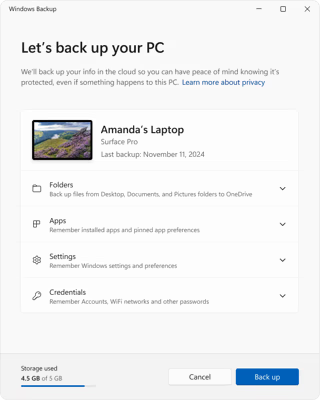
**Tip:** you can manage Windows Backup configuration from Settings too. In the Settings app on your Windows device, select **Accounts** \> **Windows backup**.
With Windows Backup you have the flexibility to choose which Windows settings and preferences you'd like to back up. The available options are:
- Installed apps
- Accessibility
- Accounts, Wi-Fi network and passwords
- Personalization like Wallpaper, color, theme, start layout, etc.
**Note:** Personalization requires OneDrive sign-in and available storage. Personalization preferences will not be backed up if you have insufficient OneDrive storage.
- Language preferences and dictionary
- Other Windows settings
To check the status of all of these settings from Windows Backup, expand each element. To back up a setting, toggle it **On**.
**Note:** If these settings have been backed up in the past (and some are by default), they will show as Backed up and the toggle switch will be unavailable. If you want to stop backing these up, see [Modify your backup configuration](https://support.microsoft.com/en-us/windows/#bkmk_stop_backup_11).
Once you have everything set up the way you want it, select **Back up**.
If you receive an error from OneDrive when you try to back up, it's possible that you aren't signed in to OneDrive, have insufficient storage, or there may be another issue with OneDrive that needs to be resolved for Windows Backup to work. For more, see [Fix OneDrive sync problems](https://support.microsoft.com/en-us/office/fix-onedrive-sync-problems-0899b115-05f7-45ec-95b2-e4cc8c4670b2).
You're all set! Your folders and settings are backed up and you can access your files on all of the computers that you sign into with this Microsoft account.
If you want to check and make sure everything is still backed up, you can open the Windows Backup app and it will display the current state of your backup.
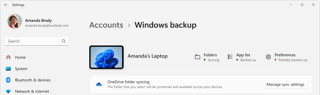
You can also check the status in the Settings app , select **Accounts** \> **Windows backup**
## Microsoft Edge の設定はどうなりますか?
どのデバイスからでも簡単に Web を閲覧し、お気に入りを整理しておくには、Microsoft Edge にサインインして同期をオンにします。
[Microsoft Edge をデバイス間で同期するにはサインインしてください](https://support.microsoft.com/en-us/microsoft-edge/sign-in-to-sync-microsoft-edge-across-devices-e6ffa79b-ed52-aa32-47e2-5d5597fe4674)
## バックアップ設定を変更する
バックアップ設定を変更したい場合は、 **設定 を開いてください** \> **アカウント** \> **Windows バックアップ** 、または次のショートカットを使用します。
[Windowsバックアップ](https://support.microsoft.com/en-us/windows/)
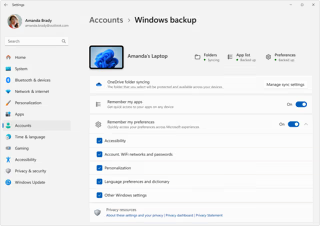
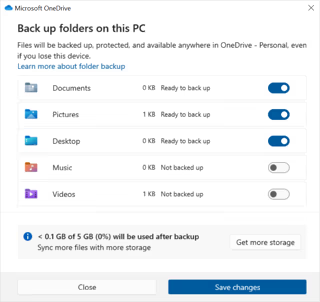
- OneDriveへのフォルダーの同期を変更するには、 **OneDriveフォルダーの同期** の下にある **同期設定の管理を** 選択し、バックアップするフォルダーを切り替えます。
- アプリのバックアップを変更するには、「 **アプリを記憶する」** トグルを使用します。この設定は職場または学校のアカウントでは利用できません。また、Windowsは職場または学校のアカウントのアプリを記憶しません。
- 設定のバックアップを変更するには、 **「設定を記憶する」** の下にあるチェックボックスをオンにし、バックアップしたい項目のチェックボックスがオンになっていることを確認してください。「 **その他のWindows設定」** をオンにすると、Windowsはデバイス設定(プリンターやマウスのオプションなど)、エクスプローラーの設定、通知設定も同期します。このオプションは、組織で許可されている場合、職場または学校のアカウントで利用できます。詳細については、「 [Microsoft Enterprise State Roamingの有効化」を参照してください。](https://learn.microsoft.com/entra/identity/devices/enterprise-state-roaming-enable)
バックアップをオフにしていて、以前に Microsoft アカウントにバックアップされたデータを削除する場合は、Microsoft [アカウントのデバイス ページ](https://account.microsoft.com/devices) にアクセスし、 ページの下部にある **クラウド同期設定セクションを見つけて選択し、** **保存された設定をクリア** を選択します。
## PCを復元する

### バックアップを復元するにはどうすればいいですか?
安心してください!新しいパソコンをご購入いただいた場合や、Windowsを再インストールする必要がある場合、セットアップ時に、バックアップに使用したのと同じMicrosoftアカウントでログインしてください。バックアップがあることを確認し、復元するかどうかを尋ねます。
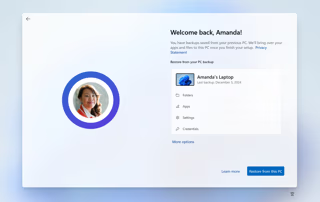
複数のPCにバックアップしている場合は、 **「その他のオプション」** を選択し、復元したいバックアップを選択してください。デスクトップにアクセスすると、すべてがすぐに表示されます。
- アプリのピンは、保存した場所に復元されます。Microsoft Storeで入手できるアプリは、アプリのピンを選択して復元できます。Microsoft Storeで入手できないアプリの場合は、Webからインストーラーをダウンロードできます。
- 最も重要な設定も新しいデバイスに復元されます。サポートされている設定の完全なリストについては、 [Windowsバックアップ設定カタログをご覧ください。](https://support.microsoft.com/en-us/windows/windows-backup-settings-catalog-deebcba2-5bc0-4e63-279a-329926955708)
- 元のバックアップを作成したのと同じ Microsoft アカウントで OneDrive にサインインすると、いつでもファイルを復元できます。
## 関連トピック
[Windows バックアップ設定カタログ](https://support.microsoft.com/en-us/windows/windows-backup-settings-catalog-deebcba2-5bc0-4e63-279a-329926955708)
[Microsoft アカウントのメインページ](https://account.microsoft.com/)